My Honest Take on Grow a Garden 2 Codes (Updated June 2026)
I have been playing Roblox farming games for a while now, and when Grow a Garden 2 dropped on June 12, 2026, I jumped in within the first hour just to see what changed. The first game became one of the biggest things on Roblox ever, so I had a feeling the sequel would blow up fast too. After spending a few days planting, watering, defending my plots at night, and digging through every code I could find, I decided to put everything in one place. This guide covers every active Grow a Garden 2 code, how to redeem them properly, what rewards you actually get, why some codes stop working, and a full controller layout for anyone playing on PC with a gamepad or on Xbox.
I will also walk through the basic gameplay loop for new players, since the sequel added a night time stealing system and garden defense mechanics that were not in the original game. If you only care about codes, jump to the list below. If you want the full picture, including tips I picked up from my own playthrough, keep reading.
What Is Grow a Garden 2?
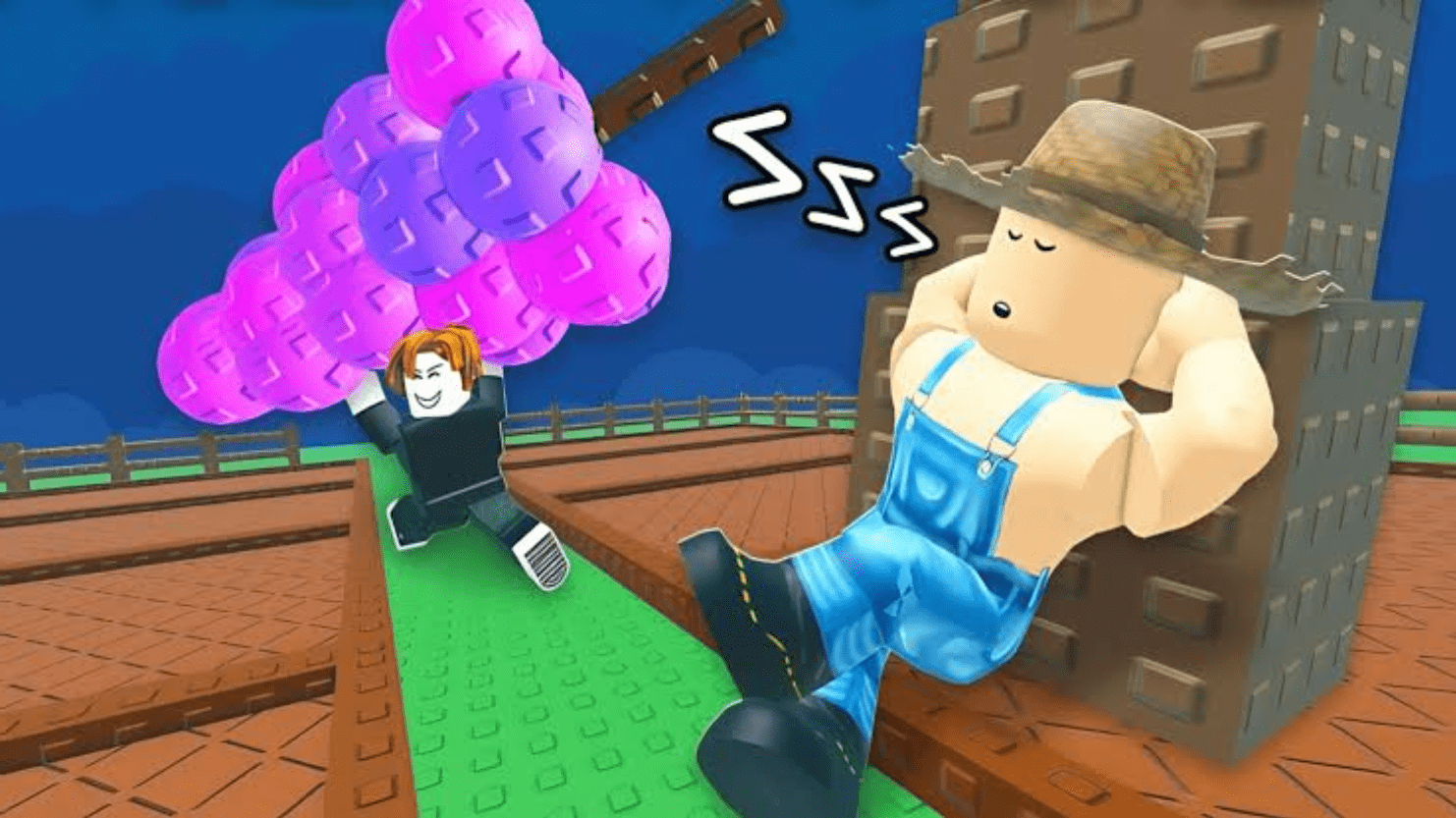
Grow a Garden 2 is the sequel to the record breaking Roblox farming experience that pulled in tens of millions of players at its peak. The original game was simple. You bought seeds, planted them, watered them, waited, and sold the harvest for in game currency called Sheckles. The sequel keeps that core loop but adds a twist. Now your garden can be raided at night by other players or creatures, so you need to build traps and defenses to protect your crops. There is also a redesigned map, new plant types, new pets, and an expanded shop system.
The game launched as a standalone Roblox experience on June 12, 2026, rather than as an update to the first title. That means progress, codes, and inventory in Grow a Garden 2 are separate from the original Grow a Garden. If you already had a huge garden in the first game, you start fresh in the sequel, which honestly feels nice because everyone is on the same footing right now.
Active Grow a Garden 2 Codes (June 2026)
Since the game just launched, the list of codes is still short, but new ones tend to drop quickly after a big launch like this. Here is the current list of working codes as of June 13, 2026.
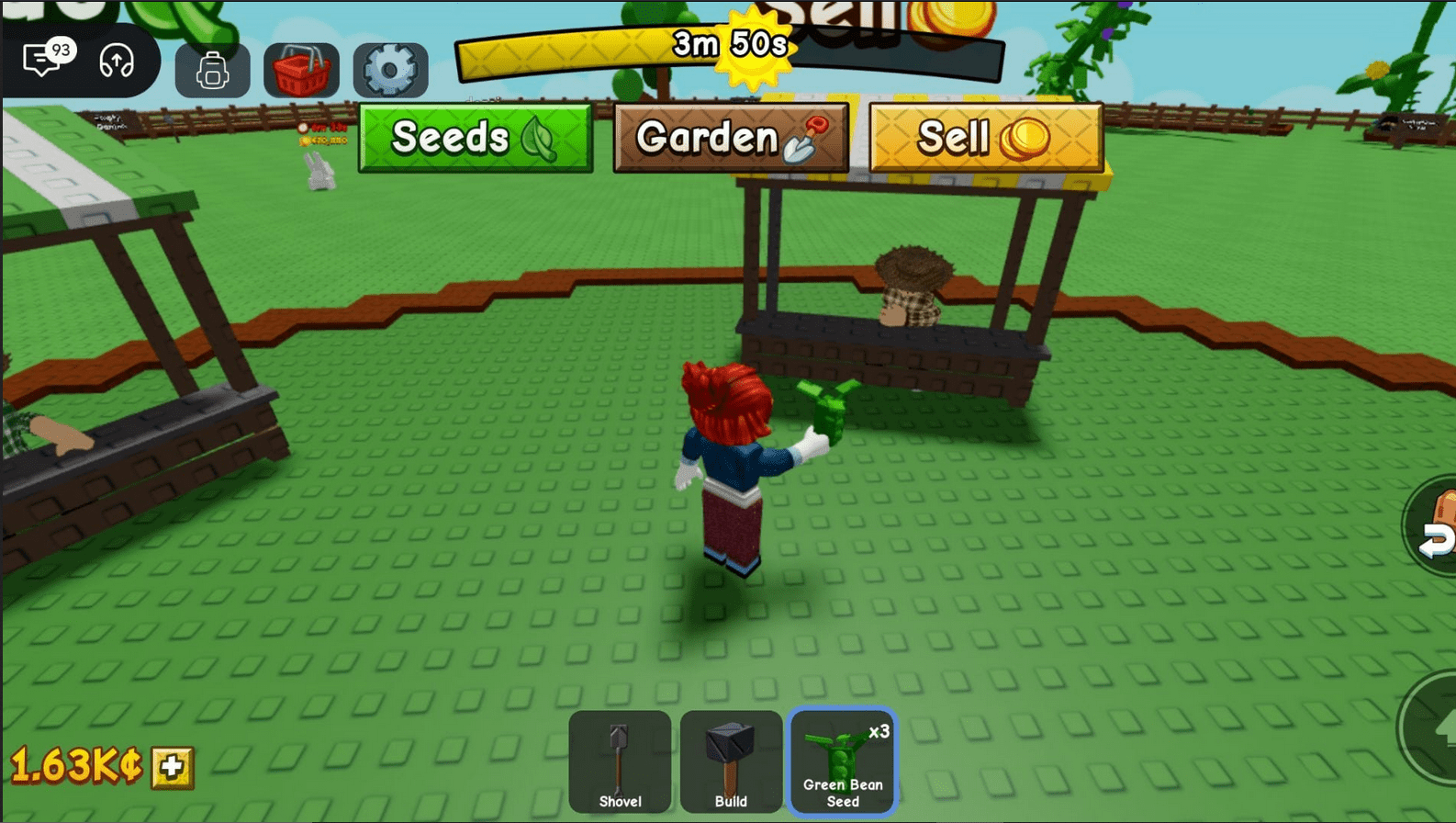
- TEAMGREENBEAN – Redeem this for 3 Green Bean Seeds, a solid early plant that grows fast and sells for a decent amount of Sheckles. This code went live alongside the game’s launch and is currently the only confirmed working code.
That is it for now. I know it feels short, but remember the game is brand new. The developers behind The Garden Game brand usually push out fresh codes around milestones such as player count records, social media follower goals, or small content patches. Based on how the first game handled codes, I expect a wave of new ones within the first month after launch.
Expired Grow a Garden 2 Codes
There are currently no expired codes for Grow a Garden 2. Every code released so far is still active, mostly because the game has only been out for about a day. Once codes start expiring, I will update this section so you do not waste time trying codes that no longer work.
How to Redeem Grow a Garden 2 Codes (Step by Step)
Redeeming codes in Grow a Garden 2 follows the same flow as the original game, so if you played that one before, this will feel familiar. Here is exactly what to do.
Xbox Chief Confirms He Watched Elder Scrolls 6 Running, And Fans Think A Reveal Is Coming Soon
- Open Roblox and launch Grow a Garden 2 from your games list or search for it directly in the Roblox search bar.
- Once you load into your garden, look at the top left corner of the screen for the gear or cog icon. This opens the Settings menu.
- Scroll down inside the Settings menu until you see a text box labeled something like “Type code here…”
- Click or tap on that box and type the code exactly as it appears, including capital letters. The codes are case sensitive.
- Press the Claim or Redeem button next to the box.
- If the code is valid, you will see a confirmation message and the reward will land in your inventory almost instantly.
From my own experience, the rewards usually show up right away. Seeds go into your seed inventory, pets appear in your pet menu, and cosmetics show up under the cosmetics tab. If nothing happens after you click Claim, double check for extra spaces before or after the code, since that is the most common mistake people make.
Common Reasons Codes Don’t Work
I tested a handful of codes from random forum posts just to see what happens with invalid entries, and here is what I found out about why codes sometimes fail.
- Typing errors – Even one wrong character or a lowercase letter where there should be a capital will cause the code to fail. Copy and paste whenever possible.
- Expired codes – Codes only last for a limited time, sometimes just a few days, sometimes weeks. Once the timer runs out, the code simply stops working.
- Already redeemed – Each code can usually only be claimed once per account. If you already used it, the game will tell you it has already been redeemed.
- Region or server issues – Occasionally a code rolls out gradually and might not work for everyone at the exact same moment. Waiting a few minutes and trying again sometimes helps.
- Server downtime – If Roblox itself is having issues, code redemption can fail temporarily even with a correct code.
Where to Find New Grow a Garden 2 Codes
New codes do not usually appear inside the game itself. Developers announce them through outside channels, so it helps to know where to look. Based on how the original Grow a Garden handled this, here are the best places to watch.
- Official Discord server – The Garden Game team posts codes here first most of the time. Joining the server and turning on notifications for the announcements channel is probably the fastest way to catch a code the moment it drops.
- X (formerly Twitter) – The official account often shares codes tied to follower milestones or special events.
- YouTube channel – Sometimes codes are revealed in video descriptions or during livestreams celebrating updates.
- Roblox group page – The Garden Game group on Roblox occasionally posts announcements about codes and upcoming features.
- This guide – I plan to keep checking for new codes regularly and will update the list above as soon as something new is confirmed working.
What Rewards Can You Get From Codes?
Codes in this style of farming game usually fall into a few categories. Based on the original game and the one code we have so far for the sequel, here is what you can expect.
- Seed packs – Free seeds for plants you would otherwise have to buy with Sheckles or real money. Early seed codes like the Green Bean one are great because they let you start earning currency faster.
- Pets or companions – Some codes unlock pets that can help boost your harvest speed or give passive bonuses while exploring.
- Cosmetics – Decorative items for your garden such as statues, gates, or themed structures. These do not affect gameplay but make your plot look unique.
- Currency boosts – Occasionally codes give a direct amount of Sheckles or a temporary multiplier on the money you earn from selling crops.
Grow a Garden 2 Gameplay Overview for New Players
If you are jumping into the sequel for the first time, here is a quick rundown of how things work based on my first few sessions.
Planting and Growing
You start with a small plot of land and a basic set of seeds. Plant them in the soil, water them when needed, and then wait. Plants continue to grow even when you are offline, which is one of the best parts of this whole series. Log back in later and your crops are ready to harvest.
Selling and Currency
Once a plant is fully grown, harvest it and sell it for Sheckles. Use that money to buy better seeds, expand your plot, or purchase upgrades for your garden defenses.
Night Time Stealing and Defense
This is the big new feature in Grow a Garden 2. When night falls, other players or AI controlled creatures can attempt to steal crops from your garden. To stop this, you can place traps around your plot. Some traps simply scare off intruders, while others can stun or slow them down long enough for you to react. Building a strong defense early on protects your investment, especially once you start growing rarer and more valuable plants.
Expanded Map and Exploration
The map in the sequel is bigger than the original. There are areas outside your home plot where you can find resources, visit other players’ gardens, or discover hidden bonuses. Exploring a bit between planting cycles is worth the time.
Full Controller Layout Guide for PC and Xbox
One thing a lot of guides skip over is how to actually play this game with a controller. Roblox supports gamepad input on both PC and Xbox, and Grow a Garden 2 works fine with a controller once you know where everything is mapped. I plugged in an Xbox controller on my PC to test this out, and the layout below matches what I found, which should also apply on an Xbox console since Roblox uses the same general control scheme across both platforms.
Movement and Camera Controls
- Left Stick – Move your character around the map. Push gently for a walk and fully for a run.
- Right Stick – Control the camera angle. Use this to look around your garden and check for incoming threats at night.
- Left Stick Click (L3) – In many Roblox games this toggles sprint or crouch, though in Grow a Garden 2 it mainly helps with quick directional adjustments while moving through tight garden rows.
Interaction and Action Buttons
- A Button – The main interaction button. Use this to plant seeds, water crops, harvest fully grown plants, pick up items, and confirm menu selections.
- B Button – Cancel an action or back out of a menu. This is also used to drop or discard certain items if you open the right context menu first.
- X Button – Opens your quick inventory or seed pouch, letting you switch between different seed types without going into the full menu.
- Y Button – Used to open the main menu, where you can access settings, redeem codes, check your stats, and view your garden layout options.
Bumpers and Triggers
- Left Bumper (LB) – Cycle backward through your seed or tool selection on the action bar.
- Right Bumper (RB) – Cycle forward through your seed or tool selection on the action bar.
- Left Trigger (LT) – Zoom the camera in for a closer look at your plants, which is handy when checking for pests or growth progress.
- Right Trigger (RT) – Used for placing traps or defense items once you have selected one from your inventory. Holding this can also confirm placement on certain grid spots.
Directional Pad (D Pad)
- D Pad Up – Quickly switch to your watering tool.
- D Pad Down – Quickly switch to your harvesting tool.
- D Pad Left – Switch to your planting tool, letting you select a seed type from your active loadout.
- D Pad Right – Switch to your trap or defense tool, useful right before night falls.
Start, Select, and System Buttons
- Menu Button (formerly Start) – Opens the pause menu where you can access settings, redeem codes, view your friends list, and adjust audio or graphics options.
- View Button (formerly Select/Back) – Toggles the map view, showing your plot in relation to the wider world and nearby players’ gardens.
- Xbox Button – On an Xbox console, this opens the Xbox guide overlay rather than a Roblox menu, so use it sparingly while playing since it can interrupt your session.
Setting Up Your Controller on PC
If you are on PC and want to use an Xbox controller for Grow a Garden 2, here is what worked for me.
- Connect your Xbox controller to your PC either through a USB cable or Bluetooth, depending on your controller model.
- Open Roblox and launch Grow a Garden 2.
- Most of the time the game automatically detects the controller once you move the left stick or press any button.
- If on screen prompts still show keyboard icons, try opening the Settings menu and looking for an input or controls section to manually switch the prompt style.
- Adjust stick sensitivity in the Roblox app settings if camera movement feels too fast or too slow for your taste.
Playing on Xbox Console
On Xbox, Roblox runs as a dedicated app, and Grow a Garden 2 should be fully playable with the standard Xbox controller right out of the box. The button layout above applies directly. One tip from my own time on console is to keep an eye on your battery level, since long farming sessions where you are just waiting for crops to grow can drain a controller faster than you expect, especially with rumble feedback turned on for trap triggers.
Tips for Getting the Most Out of Codes and Early Gameplay
After spending real time in the game, here are some practical tips that go beyond just the code list.
- Redeem codes the moment you start a new save, since early seed boosts have the biggest impact when your garden is small and every extra plant counts.
- Set up a basic defense ring around your most valuable plants before your first night cycle, even if it is just one or two simple traps.
- Check back for new codes every few days rather than every hour. Codes for games like this tend to be announced in batches tied to events, not on a strict daily schedule.
- Keep your seed inventory organized using the quick select wheel, especially if you are playing with a controller, since switching tools mid action is much faster with the D pad shortcuts.
- Join the official Discord early. Not only do codes get posted there first, but the community often shares layout ideas for defense setups that work well against common night raiders.
Frequently Asked Questions
Are Grow a Garden 2 codes different from the original Grow a Garden codes?
Yes. Grow a Garden 2 is a separate Roblox experience with its own save data and its own set of codes. Codes from the original game will not work in the sequel.
How often do new codes come out?
There is no fixed schedule. Based on patterns from the first game, codes tend to arrive around launch events, content updates, or social media milestones. Right after a launch like this one, expect a few new codes within the first couple of weeks.
Can I use codes if I am playing on mobile?
Yes. The redeem process is the same across Roblox platforms, including mobile, PC, and Xbox. Just open the Settings menu and look for the code entry box in the same spot.
Do codes expire if I do not use them right away?
Most codes have a limited window before they stop working, though the exact length varies. It is a good idea to redeem a code as soon as you confirm it works rather than saving it for later.
Is Grow a Garden 2 worth playing if I never tried the first game?
Absolutely. The sequel stands on its own with a fresh map and new mechanics, so you do not need any history with the original to enjoy it. If anything, starting now means you are not behind anyone since the game just launched.
Grow a Garden 2 is still in its early days, but the foundation feels strong, and the new night defense system adds a layer of strategy that the original never had. The TEAMGREENBEAN code is a simple way to give your garden a small head start, and I will keep this guide updated as soon as more codes show up. Whether you are playing on a PC with a keyboard, a controller plugged into your PC, or directly on Xbox, the steps above should get you redeeming codes and managing your garden without any guesswork.
For more details on how Roblox itself works, including account safety and platform settings, you can check the official Roblox Support pages. If you want to verify game updates directly, the Roblox website is also a good place to confirm an experience is live and check player counts.